Search for WordPress performance advice and you will find the same list every time: install a caching plugin, compress your images, remove plugins you do not use, choose a lighter theme. All of it is reasonable, and none of it is where the largest wins usually are.
The largest wins are underneath the application, in how PHP is configured and what the server is asked to do on each request. They are also the ones a site owner cannot fix from the dashboard, which is why they persist.
This article covers the server-side layers in the order they pay off.
Understand the layers first
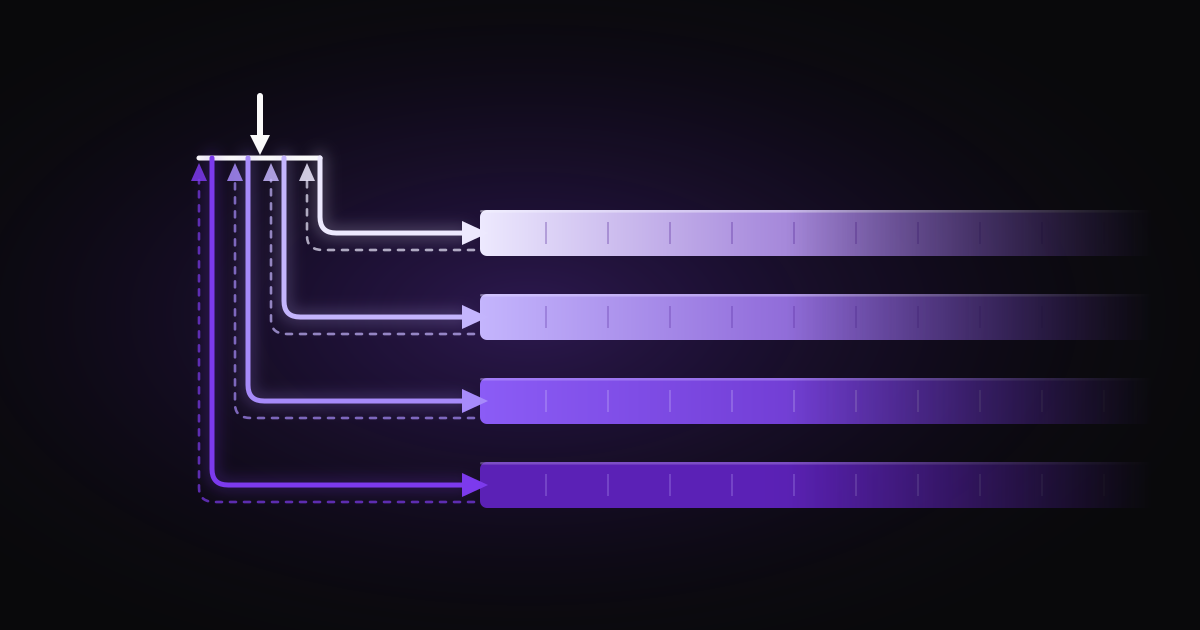
A WordPress request can be answered at four different depths, and each is roughly an order of magnitude more expensive than the one above it.
- Static file. A CSS file or image served directly by the web server. Sub-millisecond.
- Cached HTML page. A full-page cache hit, served without invoking PHP at all. A few milliseconds.
- PHP execution with a warm cache. WordPress runs, but compiled bytecode comes from OPcache and objects come from Redis. Tens of milliseconds.
- PHP execution, cold. Every file compiled, every option query hitting MySQL. Hundreds of milliseconds, sometimes seconds.
Optimisation is the business of moving requests upwards. Almost every intervention below is really an answer to "how do we answer this one layer higher?"
OPcache: stop recompiling the same code
PHP compiles source to bytecode on every request unless told otherwise. WordPress core plus a typical plugin set is several thousand files. Recompiling them for every single request is pure waste.
OPcache caches the compiled bytecode in shared memory. It is bundled with PHP and enabled by default in most distributions — but frequently with defaults far too small for WordPress.
opcache.enable=1
opcache.memory_consumption=256
opcache.interned_strings_buffer=16
opcache.max_accelerated_files=20000
opcache.validate_timestamps=1
opcache.revalidate_freq=2
The two that matter most are memory_consumption and max_accelerated_files.
If the cache fills, OPcache stops caching new files and — depending on configuration — may restart entirely, discarding everything. The symptom is a site that is fast in bursts and slow at random, with no correlation to traffic. On a server hosting many WordPress sites this is easy to hit, because the cache is per PHP-FPM pool.
max_accelerated_files is a hint that PHP rounds up to a prime. The default of 10000 is often not enough for WordPress with a real plugin set; count your files and set it comfortably above:
find /var/www/example.com -name '*.php' | wc -l
Check the actual state rather than guessing. A short script exposing opcache_get_status() will tell you the memory used, the number of cached scripts, the hit rate and — the important one — the count of out-of-memory or hash restarts. Any non-zero restart count means the cache is too small.
validate_timestamps=1 with revalidate_freq=2 means PHP checks whether a file has changed at most every two seconds. That is the right setting for a shared or agency environment where files change through the dashboard.
Setting validate_timestamps=0 removes the check entirely and is measurably faster — but it means edited files are ignored until the cache is explicitly reset. That is correct only where deployment is automated and can issue the reset. Setting it on a site where a client edits a theme file through the dashboard produces changes that appear not to save, which is a support ticket that takes a long time to diagnose.
A note on JIT: PHP 8’s just-in-time compiler helps compute-bound workloads considerably and typical WordPress requests barely at all, because they are dominated by database queries and I/O rather than arithmetic. It is not the free win it is sometimes presented as.
A persistent object cache
WordPress caches internal objects — options, post metadata, term relationships, user data — for the duration of a request. Without a persistent backend, that cache is discarded at the end of every request and rebuilt from MySQL on the next one.
This is why the WordPress Site Health screen recommends a persistent object cache, and it is one of the few dashboard recommendations that is unambiguously worth acting on.
Redis is the usual backend. With the redis-cache plugin, the configuration goes in wp-config.php:
define( 'WP_REDIS_HOST', '127.0.0.1' );
define( 'WP_REDIS_PORT', 6379 );
define( 'WP_REDIS_DATABASE', 0 );
define( 'WP_CACHE_KEY_SALT', 'example.com:' );
WP_CACHE_KEY_SALT is not optional in any multi-site scenario. Two WordPress installations sharing a Redis instance without distinct salts will collide on cache keys, and the resulting cross-site data leakage is as bad as it sounds. Set it per site, always.
On the Redis side, bound the memory and choose an eviction policy:
maxmemory 512mb
maxmemory-policy allkeys-lru
allkeys-lru discards the least recently used keys when full. The default policy, noeviction, returns errors on write when memory is exhausted — which for a cache is the wrong behaviour, and produces confusing intermittent failures.
Where Redis is shared between sites, give each site its own numbered database or a distinct key prefix, and remember that FLUSHALL from one site’s admin screen will empty the lot.
The improvement is most visible on sites with heavy metadata use — WooCommerce, membership plugins, anything with large numbers of custom fields — where a single page load might otherwise issue several hundred small queries.
Full-page caching: skipping PHP entirely
The layers above make PHP faster. Full-page caching avoids running it at all.
For anonymous visitors on a content site, the rendered HTML is identical for everyone. Serving it from disk or memory turns a 200 ms request into a 2 ms one.
This can be done inside WordPress with a plugin that writes static HTML, or in front of it with nginx’s fastcgi_cache, or further out at a CDN. Which layer you choose matters less than getting the exclusions right, and the exclusions are where this goes wrong.
Never cache a page when the request carries a session-bearing cookie:
wordpress_logged_in_*— a logged-in usercomment_author_*— someone who has commentedwoocommerce_items_in_cart,wp_woocommerce_session_*— an active basket
And never cache the admin area, the login page, or WooCommerce’s cart, checkout and account pages.
The failure mode when this is wrong is serious rather than merely slow: one user’s personalised page — their basket, their account details, their logged-in header — cached and served to everyone else. If you take one thing from this section, it is that a page cache without correct cookie exclusions is a data breach waiting for the right traffic pattern.
Sizing PHP-FPM
PHP-FPM maintains a pool of worker processes. Too few and requests queue; too many and the server exhausts memory and starts swapping, which is far worse than queuing.
pm = ondemand
pm.max_children = 20
pm.process_idle_timeout = 30s
pm.max_requests = 500
pm.max_children should be derived, not guessed: roughly the RAM available for PHP divided by the average process size. Measure the average rather than assuming it — a WordPress worker typically sits between 60 MB and 150 MB depending on the plugin set:
ps -ylC php-fpm8.3 --sort:rss | awk '{sum+=$8; n++} END {print sum/n/1024 " MB"}'
pm = ondemand starts workers only when needed and lets them exit when idle, which is a substantial saving on a server hosting many low-traffic sites. For a single busy site, dynamic with a warm pool of idle workers is usually better. pm.max_requests recycles a worker after a set number of requests; it does not fix memory leaks, it bounds them.
Give each site its own pool where you can. It isolates memory, isolates OPcache, and stops one site exhausting its workers from starving the others.
The database side
Two WordPress-specific issues account for most of the database problems we see.
Autoloaded options. Every WordPress request loads all options marked for autoloading in a single query. Poorly behaved plugins add large values — serialised arrays, cached API responses — and never clean them up. A site with several megabytes of autoloaded options pays that cost on every single request, cached or not.
The values used in the autoload column changed in WordPress 6.6, so a query written for older versions may under-report. This form covers both:
SELECT option_name, LENGTH(option_value) AS size
FROM wp_options
WHERE autoload NOT IN ('no', 'off', 'auto-off')
ORDER BY size DESC
LIMIT 20;
Under a megabyte in total is healthy. Several megabytes needs investigating — and the offender is usually one or two rows, easily identified from that query. Before changing anything, confirm what wrote the row; some plugins recreate it, and the real fix is the plugin.
Expired transients. Transients are cached values with an expiry, stored in wp_options when there is no persistent object cache. Expired ones are only cleaned opportunistically, and on a busy site they accumulate into hundreds of thousands of rows. Installing a persistent object cache removes the problem at source, because transients then live in Redis with real expiry semantics.
Order of work
If you are looking at a slow WordPress site on a server you control:
- Check OPcache status for restarts and a low hit rate. Raise the memory and file limits if needed. Cheapest possible fix.
- Add a persistent object cache. Largest single improvement on plugin-heavy sites.
- Add full-page caching for anonymous traffic, with correct cookie exclusions.
- Size PHP-FPM from measured process memory rather than from a default.
- Audit autoloaded options.
- Then, and only then, start on plugins, themes and images.
The first four are invisible to the person who owns the site, and are almost always where the time actually goes.
FXRM’s hosting ships with per-site PHP-FPM pools, tuned OPcache and Redis object caching available as standard, on UK infrastructure. See our hosting →
